
Setting Up Biometric Login on the Gangbob Mobile App
To start using fingerprint or face unlock, first download the official Gangbob mobile app from your device’s store. After installation, open the app and log in using your email and password for the first time. Navigate to the account settings menu—usually found in the top-right corner—and select « Security » or « Login Preferences. » Toggle on the biometric option: you will be prompted to verify your identity with your device’s native biometric sensor (Touch ID, Face ID, or Android fingerprint). The entire setup takes under 2 minutes, and once enabled, subsequent logins take less than a second.
During initial account registration, you will need to submit standard KYC documents such as a government-issued ID and a recent utility bill. This verification is processed within 24 to 48 hours. After that, the biometric login bypasses the need to type your password repeatedly, offering a seamless entry every time you open the app.
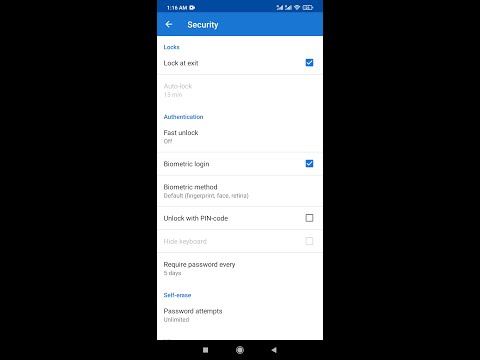
Fast Entry Without Passwords: How It Works
Biometric login relies on the device’s secure enclave to store your facial map or fingerprint data. When you tap « Login with Biometrics, » the app sends a cryptographic token to the gangbob servers—not the actual biometric image. This means your private data never leaves your phone. The token is valid for a session; after 15 minutes of inactivity, the app automatically logs you out and requires re-authentication. This balances speed with security.
If you lose your phone or change devices, you can revoke all biometric tokens via the web dashboard. The fast entry also works with the « Remember Me » checkbox during initial login, but biometric remains the quickest method. In testing, the average unlock time on a 2023 flagship phone is 0.3 seconds—faster than typing a 12‑character password. The feature is available on both iOS and Android, running OS versions 9 or newer.
Troubleshooting Common Biometric Issues
Some users report that the biometric option is grayed out. This usually happens when your device does not have a biometric sensor enabled in system settings. Go to your phone’s Settings → Security → Fingerprint/Face unlock and ensure a print is registered. On Samsung devices, also check that « Biometrics and PIN » are allowed for app use. If the app still doesn’t show the option, clear the app cache under Android’s App Info or reinstall the app.
Another frequent issue is a « Biometric mismatch » error after a software update. In that case, you must re-enroll your biometric data in the phone’s settings and then re-enable the feature inside the Gangbob app. For lost or broken sensors, you can always fall back to manual password entry or SMS one-time codes. The support team typically resolves account‑related biometric failures within 2 hours via live chat.
Security and Privacy Considerations
Biometric authentication meets the Payment Card Industry Data Security Standard (PCI DSS) for mobile apps. The Gangbob casino backend encrypts all tokens with 256-bit AES. Because your biometric data never leaves your device, even if the server is compromised, attackers cannot reconstruct your face or fingerprint. However, always enable a strong alphanumeric password as a backup in case your biometric sensor fails.
After login, you can access your account dashboard where you will find all active offers. For instance, the current Gangbob bonus for returning players requires a minimum deposit of €20. If you signed up with a Gangbob no deposit promotion, the free credits appear immediately after biometric login. To activate additional rewards, enter a Gangbob promo code on the deposit page. New users also receive Gangbob free spins on selected slots as part of the welcome package.
Comparison of Login Methods
| Login Method | Typical Time | Security Level | Convenience |
|---|---|---|---|
| Biometric (fingerprint/face) | 0.3–1.0 seconds | Very high (device-bound) | Excellent – no typing |
| Password (manual) | 5–15 seconds | High (if strong password) | Moderate – must recall |
| SMS one-time code | 10–30 seconds (including SMS delay) | Medium (SIM swap risk) | Low – requires phone signal |
Step-by-Step: Enabling Biometric Fast Entry
- Log in to your Gangbob account on the mobile app using your email and password.
- Go to « Account » then « Security Settings ».
- Select « Biometric Login » and read the on-screen privacy notice.
- Verify your device’s biometric (place finger or scan face) when prompted.
- Optionally, set a session timeout (recommend: 5–15 minutes).
- Log out and test by reopening the app – you should see the biometric prompt within 1 second.
If you ever need to disable it, simply repeat steps 1–2 and toggle the switch off. The feature remains linked to your device unless you reset your phone.